Email Extractor 1.6 - Extract Emails from Text, PDFs, Files & Websites in 2026
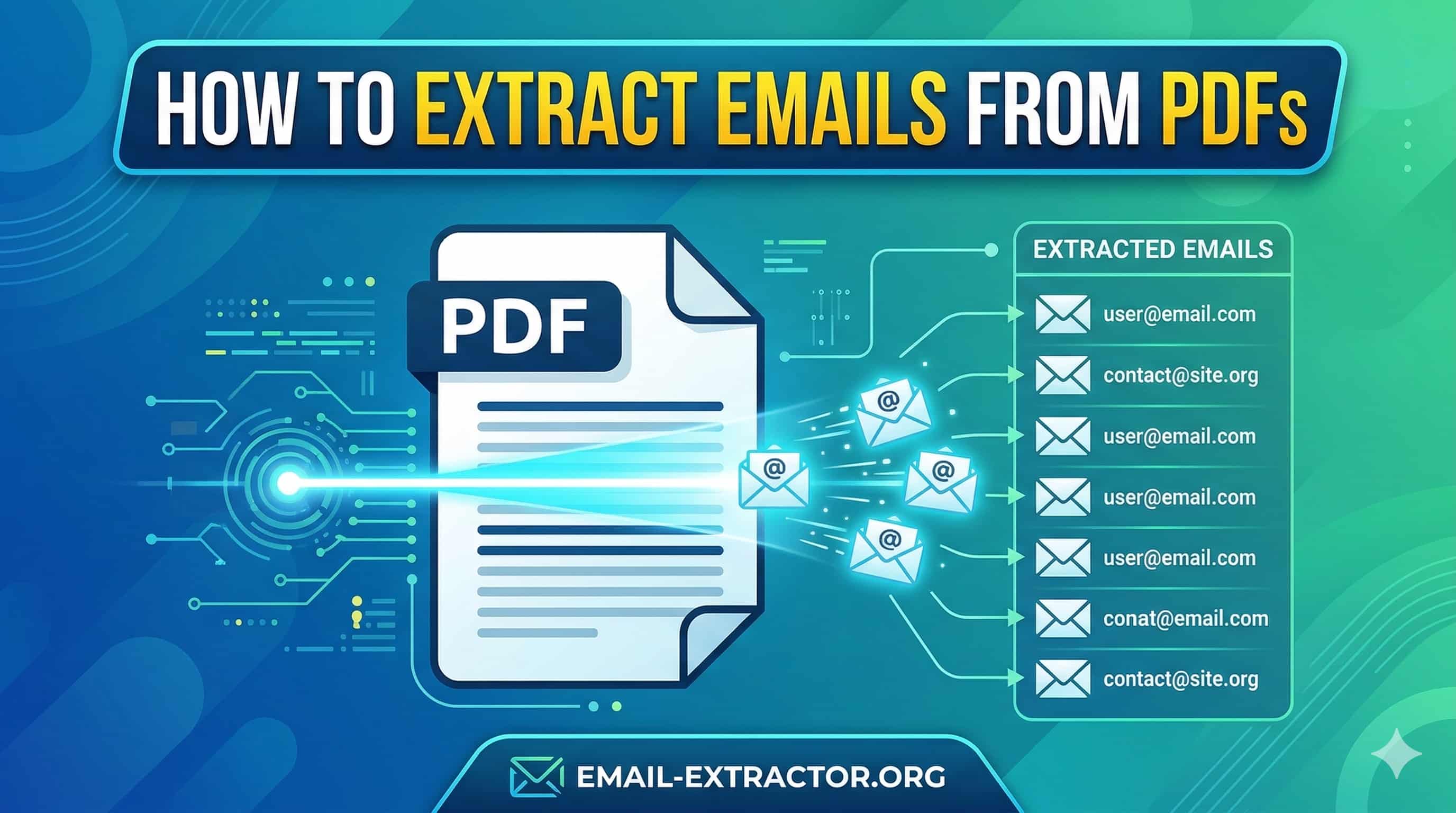
You have a 50 page PDF. Somewhere inside it, buried between paragraphs and footnotes, are 300 email addresses you need it right now.
Copying them one by one? That is not a good idea. It will take a lot of time.
The free Email Extractor 1.6 tool fixes this in about three seconds. Upload the PDF, click extract, and you get a clean, deduplicated list, ready to use. No account. No download. No subscription fee. Just results.
In this guide, we cover everything you need to know about Email Extractor 1.6 (also called Lite 1.6): what it is, how it works, its full feature, a step-by-step tutorial, real-world use cases, how it compares to other versions, and honest answers to the most common questions people ask about it.
What Is Email Extractor 1.6?
Email Extractor 1.6 is widely known as "Lite 1.6" or "Email Extractor Lite 1.6" which is a free, browser based tool that scans a block of text and pulls out every valid email address it finds.
You do not have to install anything. You do not have to create any account. You have to paste your content in, the tool does its job, and you get all Email with a clean list.
It gained a loyal following among marketers, data analysts, recruiters, and web developers because it does one specific job exceptionally well. No bloat. No pop-ups asking you to upgrade. No AI features you never asked for. Just email extraction, done fast.
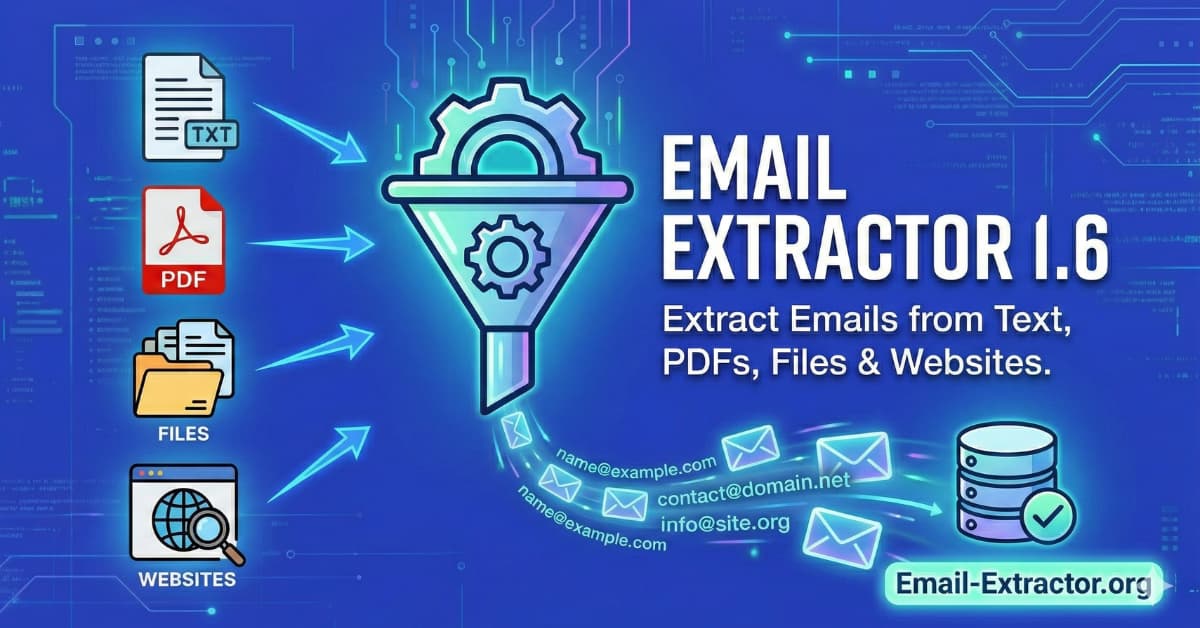
The tool handles input from virtually any source such as PDFs, Word documents, Excel spreadsheets, raw HTML, TXT files, or even copy-pasted content from a website. If the text contains email addresses, Extractor 1.6 will find them.
What Makes It Different from an Email Harvester or Email Spider?
People often confuse three terms, so let us clear that up quickly.
An email harvester or email spider actively crawls websites on its own by visiting URLs, scanning pages, and collecting addresses without you providing the text. These tools typically require installation and raise real legal concerns under laws like the GDPR and CAN-SPAM Act.
An email extractor like Lite 1.6 is different. It is a passive text parser. It only works with text you provide. It does not visit any website, scrape anything on its own, or access the internet at all during processing. You bring the content; it processes it. That distinction matters both legally and practically.
How Does Email Extractor 1.6 Actually Work?
This is where things get a little interesting, and worth understanding, even briefly.
Email Extractor 1.6 runs on JavaScript and uses regular expressions (regex) to scan your pasted text. A regex is essentially a pattern-matching rule. The tool tells your browser: "Find every string in this text that matches the format [email protected]."
More specifically, the regex looks for the standard email pattern: one or more valid characters, an @ symbol, a domain name, a dot, and a valid domain extension.
Once it identifies all matching patterns, it runs a deduplication pass by removing any address that appears more than once and returns the clean output to the results window.
Here is why that matters to you: the entire process runs client-side, inside your browser. Your text never travels to any external server. No data is uploaded, logged, or stored. For people working with confidential business documents or sensitive contact lists, this is a significant privacy advantage.
Processing speed is also genuinely impressive. The tool handles text inputs with 50,000+ characters and thousands of email addresses in milliseconds. You are not waiting. You paste, you click, you have your results.
Full Feature Breakdown: What Email Extractor 1.6 Can Do
Email Extractor 1.6 looks simple on the surface and also it is very simple to use. But underneath that minimal interface, it packs several features that give you real control over your output.
Automatic Duplicate Removal
Every time the tool runs an extraction, it automatically filters out repeated email addresses. If "[email protected]" appears 14 times across your document, you get it once in the output. This alone saves significant cleanup time when working with large or messy datasets.
Multiple Output Separator Options
This is more useful than it sounds. You can choose exactly how your extracted emails are separated in the output:
- New line — one email per line, ideal for direct paste into Gmail, Outlook, or a CRM
- Comma — perfect for CSV imports or spreadsheet tools
- Pipe (|) — useful for certain database and programming applications
- Colon (:) — for custom import formats
- Custom separator — define your own character or string
Different tools require different input formats. Having this flexibility means you skip reformatting entirely.
Alphabetical Sorting
Enable this option and the tool sorts your output A to Z before displaying it. This makes large lists much easier to review, especially when you want to spot patterns by domain or check whether specific contacts are present.
Group / Batch Output
You can specify a group size for the output - for example, output emails in groups of 50 per block. This is handy when you need to split large lists into batches for different campaign segments or when your platform has per-send limits.
Domain Filter ("Do Not Extract")
This is a feature many users overlook, and it is genuinely useful. You can enter specific strings in the filter field, and the tool will exclude any email address containing those strings.
Practical example: you are processing a list that includes your own team's email addresses. Enter your company domain in the filter, and the tool strips them from the output automatically. No manual cleanup needed.
Email vs. Web Address Toggle
You can choose to extract email addresses only, or include web URLs in the output as well. Most users want email-only output, but the flexibility to grab both in a single pass saves time for web researchers and SEO professionals.
Zero Installation Required
The tool runs entirely in your web browser. Chrome, Firefox, Edge — any modern browser works. No download. No admin permissions needed. No software to update. You can use it on any computer, tablet, or device with a browser and an internet connection.
Step-by-Step Tutorial: How to Use Email Extractor 1.6
Using the tool takes about 60 seconds the first time. After that, you could do it in your sleep.
Step 1. Gather Your Source Content
First, decide what source you want to extract from. Common sources include:
- A PDF exported from a CRM or business system
- A Microsoft Word or Excel file with contact information
- A plain text file of mixed data
- HTML source code from a web page (right-click, View Page Source, then Ctrl+A to select all)
- Any copy-pasted text from an email thread, document, or form export
You do not upload files directly. Instead, you open your file, select all the text (Ctrl+A), and copy it (Ctrl+C). The tool works with the raw text content.
Step 2. Open Email Extractor 1.6
Navigate to the Email Extractor 1.6 tool on Email Extractor. The interface is clean, an input window on one side, output on the other, and settings in between.
Step 3. Paste Your Text, Uploaded Files, Public Website URL
(a) Extract Emails from Pasted Text - Click inside the input window and paste your text (Ctrl+V). There is no limit that will stop a typical business document. The tool handles large volumes Texts well , test inputs with tens of thousands of characters run without issues.
(b) Extract Emails from Uploaded Files - Click the upload area and select file from your local source or drag your file. Extractor 1.6 supports multiple file format for upload ((TXT, CSV, XLSX, XLS, DOC, DOCX, PDF, HTML, MD, RTF, XML, JSON, or LOG). Supported files go up to 10 MB. That’s roughly 500–1000 pages of dense text. The tool extracts, deduplicates, scores, and lets you filter before you even export.
Note: Scanned PDFs with images won’t work (no OCR yet). Plain text-based PDFs work great.
💡 Pro Tip: When working with scanned PDFs, the PDF must have selectable text (not just a scanned image). If your PDF is image-based, run it through an OCR tool first. Google Docs can do this for free- upload a PDF and Google converts it to editable text automatically.
(c) Extract Emails from Any Public Website URL - Type or paste a public URL and hit “Extract”. The tool fetches the page content safely (public pages only- no logins, no JavaScript-heavy single-page apps due to browser limits). The tool intelligently reads webpage content, including hidden email addresses in mail to links and metadata. Ideal for lead generation, competitor research, and email list building from online sources
Step 4. Set Your Output Preferences
Before you click extract, spend five seconds configuring the output:
- Choose your separator (new line is usually the safest default)
- Enable alphabetical sort if you want an ordered list
- Add any domain filters if you want to exclude specific addresses
- Toggle whether you want web URLs included alongside emails
Step 5 — Click "Extract Email"
One click. The tool processes your text using its JavaScript regex engine and displays your clean, deduplicated results in the output window.
Step 6. Export or Copy and Use Your List
If you want to Export extracted Email, Pick your format from download button and choose File format to export (Support TXT, DOC, XLSX, CSV, or JSON). Click on download. Your file downloads immediately.
If you want to Copy, just click on “Copy Button” All extracted emails will be copied and paste directly into your destination.
Step 7: Save Your Project for Later
Hit “Save Project”. Give Name to your project and done. Everything stores safely in your browser. You can pick up right where you left off in future. All your input sources, settings, and results are securely stored in your browser, so you can revisit, re-analyse, or reuse your data & delete saved projects anytime with zero extra effort.
You just saved yourself hours. Seriously. One marketing team I know used to spend 14.5 hours a week manually handling data (Treasure Data survey). Now they run this tool and move on to strategy instead.
What File Types Work With Email Extractor 1.6?
Email Extractor 1.6 supports the following file formats, you can upload any of them :
- TXT - Plain text files
- CSV - Comma-separated values files
- DOC/DOCX - Microsoft Word documents
- PDF - Portable Document Format files
- HTML - Web page files
- XLSX/XLS - Microsoft Excel spreadsheets (all sheets and columns)
- MD - Markdown files
- RTF - Rich Text Format documents
- XML - Extensible Markup Language files
- JSON - JavaScript Object Notation files
- LOG - Log files
Real-World Use Cases: Who Uses Email Extractor 1.6 and Why
Lead Generation & Email Marketing
You download a list of 500 webinar attendees in Excel. Run it through the tool. Remove duplicates. Filter out low-quality emails. Export a clean CSV.
Result? Lower bounce rates (keep them under 2%—the 2026 benchmark for healthy deliverability). Higher open rates. Better ROI.
Cleaning Up CRM Exports
CRM systems are powerful but sometimes export data in messy formats - addresses scattered across multiple columns, mixed with phone numbers and company names in long rows. Rather than reformatting manually, you paste the exported content into Email Extractor 1.6 and pull out just the email addresses in seconds.
Organizing Opt-In Subscriber Data
A web form exports sign-ups as a block of raw data. Names, dates, IPs, and emails are all mixed together. Run it through the extractor, set a comma separator, and your email list is ready to import into your email platform.
Deduplicating Existing Contact Lists
Before any email campaign, running your existing list through the extractor removes duplicates. This prevents recipients from getting the same email twice — which damages your sender reputation and annoys contacts.
Extracting Contacts from Business Documents
Meeting notes, contracts, project proposals, and client reports often mention multiple email addresses in passing. Instead of reading every page to find them, paste the document and extract them all at once.
Processing Conference and Event Data
Event organizers often end up with attendee data in spreadsheets, PDFs, or registration exports. Email Extractor 1.6 pulls every address from the file quickly, ready for post-event follow-up.
Academic and Non-Profit Projects
Researchers love the privacy - everything stays on their machine.
The common thread? You save time, protect your sender reputation, and focus on what matters: building real relationships.
Data Cleanup for Developers and IT Teams
When developers work with log files, legacy databases, or raw data exports, email addresses are often buried in large volumes of text. The extractor is a fast, reliable way to pull them out without writing custom parsing scripts every time.
Internal HR and Recruitment Work
Recruiters sometimes receive candidate information in bulk documents — resumes compiled in a single PDF, for instance. Extracting all contact emails from a compiled document saves significant manual effort. (See our complete guide on extracting emails from PDFs).
Email Extractor 1.6 vs. Other Versions: What Actually Changed?
There are several versions of this tool family, and people frequently search across all of them. Here is a clear comparison.
| Version | Key Changes |
|---|---|
| Lite 1.4 | Earlier version; basic extraction with limited output options; no domain filter feature |
| Lite 1.6 | Current most-used version; faster JavaScript processing engine; added separator options, domain filtering, and grouping functionality |
| Lite 1.7 | Incremental update; minor improvements to the filter system and output formatting options |
| Lite 1.8 | Latest iteration; expanded output settings; improved handling of edge-case email formats |
So why does 1.6 remain the most widely used version despite newer releases existing?
A few reasons. First, it hit a sweet spot of reliability and simplicity that users trust. The interface is familiar. The results are consistent. When something works this well and this reliably, people do not feel pressure to switch.
Second, "Email Extractor 1.6" is simply the most-searched version online. Search volume data consistently shows 1.6 outpacing other versions in query frequency, which means more tutorials, forum discussions, and documentation exist around it.
Third, the core functionality is identical across all versions. The differences between 1.6, 1.7, and 1.8 are genuinely minor — incremental improvements rather than meaningful feature jumps. If you know how to use 1.6, you already know how to use them all.
Tips to Get the Best Results from Email Extractor 1.6
You can get good results without reading this section. You get great results after reading it.
- Use New Line separator for email platforms. When you plan to paste addresses into Gmail, Outlook, or any email client's BCC field, new-line-separated output works best. Most email clients recognize one address per line automatically.
- Use Comma separator for spreadsheets and CSVs. If you are importing into Excel, Google Sheets, or any CRM via CSV, comma separation drops straight into a single column without reformatting.
- Run the domain filter before pasting into campaigns. If your source document includes your own company's email addresses or competitor domains you want to exclude, set the filter before extraction. It saves a cleanup pass later.
- Work in batches for very large inputs. If you are processing extremely large documents — multi-hundred-page PDFs, for instance — splitting the content into manageable chunks keeps performance smooth.
- Use HTML source code for web-based lists. Right-click any page in Chrome or Firefox, View Page Source, Ctrl+A, Ctrl+C, paste into the extractor. You will often find email addresses in the HTML that are not immediately visible in the rendered page.
- Check your PDF is text-based, not image-based. If you paste a PDF's content and get nothing back, the PDF is likely a scanned image. Run it through an OCR tool first. Google Docs handles this for free.
- Always verify critical addresses before sending. Email Extractor 1.6 pulls addresses accurately from text, but it does not check whether those addresses still exist or are active. Run your final list through an email verification tool as a final step.
Legitimate Uses vs. Misuse: A Straightforward Guide
Let us be direct here, because this is something users genuinely want to know.
Email Extractor 1.6 is a text processing tool. Like a spreadsheet formula or a word processor's Find function, it is neutral by design. The legality of what you do depends entirely on how you use the output.
What Is Completely Fine
- Organizing exported data from your own CRM
- Cleaning up opt-in subscriber lists you have already collected
- Processing business documents, meeting notes, or contracts from your own work
- Deduplicating your own permission-based email lists before a campaign
- Extracting contacts from files your team created or that were shared with you directly
What Crosses Legal and Ethical Lines
Scraping email addresses from websites without consent, and then sending unsolicited commercial messages to those addresses, creates serious legal exposure in many jurisdictions.
The CAN-SPAM Act (United States) allows fines of up to $50,120 per violating email. The GDPR (European Union) treats email addresses as personal data — with penalties reaching 20 million euros or 4% of global annual revenue. Canada's CASL requires express consent before sending commercial emails, with penalties up to $10 million CAD per violation.
The tool itself is not the issue. The issue is what you do with the extracted data. Using Email Extractor 1.6 on data you have legitimate access to is exactly what the tool is designed for.
Email Extractor 1.6 vs. Chrome Extensions
Chrome-based email extraction extensions have become popular, and they work differently from Lite 1.6. Understanding the difference helps you choose the right tool for the right job.
Chrome extensions integrate into your browser and can scan web pages as you visit them — automatically pulling emails from the page you are currently viewing. They are useful for real-time extraction while browsing.
Email Extractor 1.6 requires you to paste text manually, but it handles large volumes of text from offline sources, PDFs, Word docs, Excel files, legacy databases — that a Chrome extension cannot access at all.
The two tools serve different workflows:
- Use a Chrome extension when you are browsing websites and want to capture emails from pages as you visit them
- Use Email Extractor 1.6 when you have a document, file, or large text block and want to process it quickly without installing anything
Many professionals use both, depending on the task at hand. They are complementary, not competing.
Troubleshooting Common Issues
- “No emails found?” Check your text actually contains emails. Try a different format.
- “File too large?” Keep under 10 MB. Split big files.
- “URL not working?” Make sure the page is public. Some sites block scrapers—totally normal.
- “Quality scores seem low?” That’s good! The tool flags risky emails so you avoid bounces.
- Mobile users: Everything works, but big files feel smoother on desktop.
- Still stuck? Drop a comment below. The community helps fast.
Frequently Asked Questions About Email Extractor 1.6
Is Email Extractor 1.6 completely free?
Yes. Email Extractor 1.6 is free to use with no registration, no account creation, and no subscription required. There is no premium tier- the full feature set is available to every user at no cost.
Does Email Extractor 1.6 require installation or download?
No. The tool runs entirely in your web browser. Open the page, paste your text, and use it immediately. No software download, no browser extension installation, no admin permissions needed.
What is the maximum amount of text it can handle?
The tool comfortably processes text inputs well above 50,000 characters. For most practical use cases — PDFs, Word documents, spreadsheet exports, you are unlikely to hit any practical limit in a single pass.
Does the tool send my data to any server?
No. Email Extractor 1.6 processes everything client-side, inside your browser's JavaScript engine. Your text is never transmitted to any external server or stored anywhere. This makes it safe for use with confidential business documents.
What is the difference between Email Extractor 1.6 and Lite 1.6?
They are the same tool. "Lite 1.6," "Email Extractor Lite 1.6," "Lite16," and "Email Extractor 1.6" all refer to the same free browser-based extractor. The "Lite" name comes from the original naming convention of the tool family.
Can Email Extractor 1.6 find new email addresses from the internet?
No. It is a text parser, not a web crawler. It only extracts email addresses from text you paste into it. It does not browse the web, crawl URLs, or discover new addresses independently.
What browsers work best with Email Extractor 1.6?
Google Chrome and Mozilla Firefox (current versions) deliver the best performance. Microsoft Edge also works well. Any modern browser with JavaScript enabled will run the tool correctly.
Can I use Email Extractor 1.6 on my phone or tablet?
Yes. Because it runs in a browser, it works on any device with a mobile web browser — iPhone, Android, iPad. The experience may be slightly less convenient than desktop due to copy-paste mechanics on mobile, but the tool functions correctly.
Why am I getting no results after pasting/uploading my PDF content?
The most common reason is that your PDF is image-based (a scanned document) rather than text-based. Image-based PDFs display text visually but do not contain selectable, copyable text. Run your PDF through an OCR tool first, Google Docs handles this for free — then paste the converted text into the extractor.
Is it legal to use Email Extractor 1.6?
Using the tool to process data you legitimately own or have access to is entirely legal. The legality question applies to how you collect the source data and how you use the extracted output, not to the tool itself.
Why Email Extractor 1.6 Still Matters in 2026
You might wonder: in 2026, with AI tools everywhere and CRM platforms more sophisticated than ever, why does a simple regex-based extractor still have a place?
Because the problem it solves has not gone away.
Data is still messy. PDFs still bury email addresses in paragraphs. Exported spreadsheets still mix contact information with noise. Meeting notes still contain email addresses embedded in plain text. No amount of AI sophistication changes the fact that sometimes, you just have a block of text and you need the emails out of it.
Email Extractor 1.6 does that job faster and more reliably than any workaround. You could write a Python script. You could copy and paste manually. You could ask a coworker. Or you could use a tool specifically built for this task, that runs in your browser, costs nothing, and takes under a minute.
The tools that survive long-term are not always the most complex ones. They are the ones that do a specific job so well that people keep coming back. Email Extractor 1.6 has earned that position through years of reliable, friction-free performance.
How Email Extractor 1.6 Supports Better Email List Hygiene
Good email list hygiene is not optional for anyone running serious email campaigns. Mailbox providers — Gmail, Outlook, Yahoo, track how your emails perform. High bounce rates signal poor list quality and damage your sender reputation. According to Mailchimp's email marketing benchmarks, average bounce rates across industries sit below 1%. Sustained bounce rates above 2-3% begin to affect deliverability noticeably.
Email Extractor 1.6 contributes to list hygiene in a specific, practical way: it removes duplicates during extraction. Sending the same email twice to the same address is a minor issue, but at scale — across thousands of contacts — duplicates compound. Deduplication at the extraction stage prevents this entirely.
The tool does not verify that extracted addresses are still active or deliverable. That is a separate step, handled by email verification tools. But by removing duplicates and providing a clean, structured output, Email Extractor 1.6 reduces the manual work in the list hygiene process significantly.
The Verdict: What Email Extractor 1.6 Is (and What It Is Not)
Let us close with clarity.
Email Extractor 1.6 is a fast, free, browser-based text parser. It excels at one specific job: finding every email address in a block of text and returning a clean, deduplicated, formatted list. It does this better than any manual process, faster than most alternatives, and without requiring installation, registration, or payment.
It is not a web crawler. It is not an email finder. It does not discover new addresses, verify deliverability, or connect to the internet during processing. Those are different tools for different tasks.
The professionals who get the most value from Email Extractor 1.6 are the ones who understand that distinction clearly. They use it for what it genuinely does well — organizing and cleaning existing contact data, and combine it with appropriate verification and sending tools for the full workflow.
If you regularly work with documents, exports, or data that contains email addresses, Email Extractor 1.6 belongs in your toolkit. It is one of those rare tools where the gap between "not knowing it exists" and "knowing it exists" genuinely changes how much time you spend on a common task.
Try it on your next messy PDF. You might be surprised how often you reach for it after that.
Sources and Further Reading
The following authoritative sources informed the factual claims in this article:
- Mailchimp Email Marketing Benchmarks — Email bounce rate industry averages and deliverability guidance.
- U.S. Federal Trade Commission — CAN-SPAM Act Compliance Guide — Commercial email law requirements and penalty information.
- European Commission — GDPR Overview — EU personal data protection regulation.
- Government of Canada — CASL — Canada Anti-Spam Legislation requirements and penalties.
- MDN Web Docs — Regular Expressions — Technical reference for JavaScript regex used in email pattern matching.
Found this guide helpful? Try Email Extractor 1.6 at Email Extractor — no sign-up required.