How to Extract Emails from PDFs Using Email Extractor 1.6
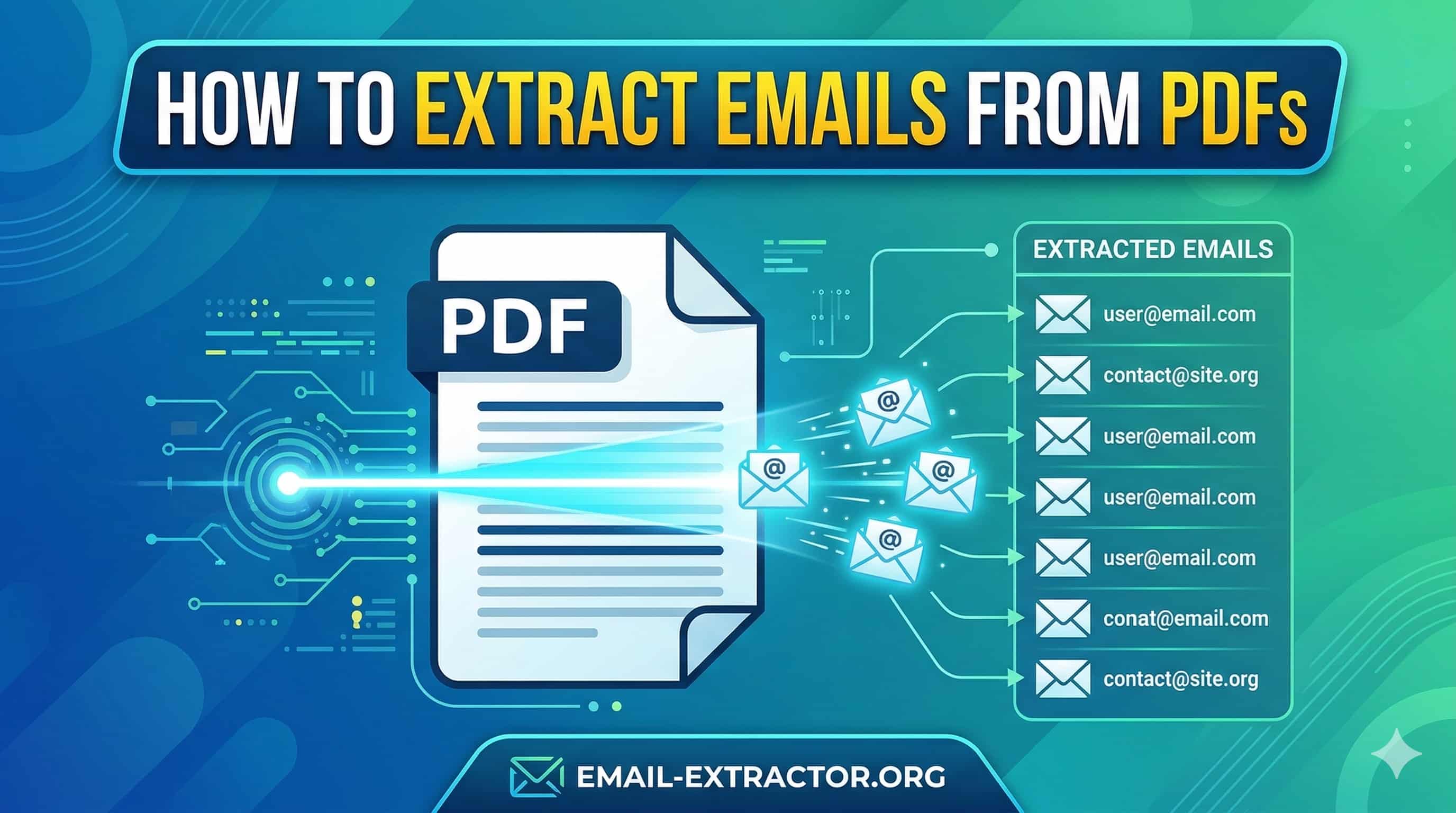
PDF files are used everywhere like reports, invoices, event programs, research papers, and more. Many of them contain email addresses that you might need. But copying each email one by one takes a lot of time and effort.
With Free Email Extractor 1.6, you can quickly find and collect all email addresses from a PDF file, making the process simple and fast.
In this guide, you will learn exactly, how to extract emails from PDFs using Email Extractor, what the tool can and cannot do, and some practical tips to get the most accurate results every time.
What Is Online Email Extractor 1.6?
Email Extractor 1.6: also known as Lite 1.6, Lite16, or Extractor 1.6, is a free, browser-based email extraction tool. It requires no installation, no sign-up, and no payment. You open it in any modern browser and it works right away.
The tool uses JavaScript-powered regex (regular expression) patterns to scan text and pull out every valid email address it finds. Version 1.6 is an improved iteration over earlier builds, with better email pattern recognition, smarter duplicate detection, and improved handling of international email address formats.
One of its biggest selling points is privacy. All processing happens locally inside your browser and your files and extracted data never leave your device or get uploaded to any server. For anyone dealing with confidential documents, that matters a lot. for complete Guide of on Email Extractor 1.6 read our blog Email Extractor 1.6- Ultimate Guide
What File Formats Does Email Extractor 1.6 Support?
Beyond PDFs, Email Extractor 1.6 accepts a wide range of formats. You can upload or paste content from:
- PDF, DOC, DOCX
- TXT, CSV, XLSX, XLS
- HTML, RTF, XML, JSON, LOG, MD
This flexibility makes it useful across many different workflows, not just PDF extraction. Marketers, recruiters, developers, and researchers all rely on it to clean up messy contact data from multiple source types.
Quick Prep: Make Sure Your PDF Is Text-Based
Before anything, check if your PDF contains selectable text. Open it in a browser or Adobe Reader. Try highlighting a sentence and copying it.
- If text copies easily → Perfect. Proceed directly.
- If it's scanned (images of pages) → No text to extract. First, convert it with free OCR like Google Docs: Upload the PDF, open with Google Docs, then copy the resulting text or save as a new searchable PDF.
Email Extractor 1.6 handles text-based PDFs up to 10 MB (roughly 500–1000 dense pages). For scanned files, OCR is your friend—tools like Google Docs do this free and fast.
Pro tip: Test a small section first. Copy one page of text and see if emails appear. This saves headaches later.
Step 1: Navigate to Email Extractor 1.6
Open your browser (Chrome works best for smooth performance) and go to the Email Extractor tool at email-extractor.org.
The interface looks clean and intuitive:
- Left side: Input area for text or file upload.
- Middle: Settings toggles and filters.
- Right side: Output window with results.
No login, no ads cluttering things, just pure functionality.
Step 2: Upload Your PDF File
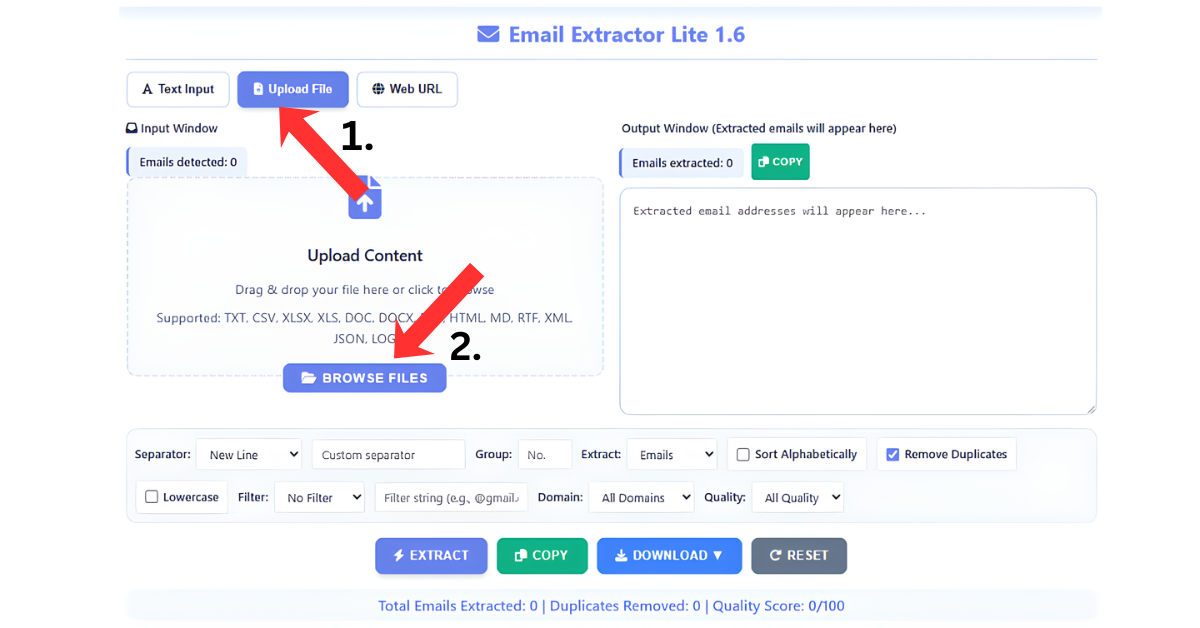
You have two main ways to get content in by uploading the file directly or pasting extracted text. For PDFs, uploading is usually easiest.
- Click the upload area or drag your PDF file into the box.
- The tool supports PDF uploads (along with TXT, CSV, XLSX, DOCX, HTML, and more) up to 10 MB.
- Wait a second the browser processes it client-side. No upload to servers means your data stays private.
If your PDF is huge or you're on mobile, copy-paste works too:
- Open the PDF.
- Select all text (Ctrl+A or Cmd+A).
- Copy (Ctrl+C).
- Paste into the input window (Ctrl+V).
Either method feeds the text content to the extractor engine.
Humor break: It's like feeding a very polite vacuum cleaner, only emails get sucked up, nothing else escapes.
Step 3: Configure Your Extraction Settings
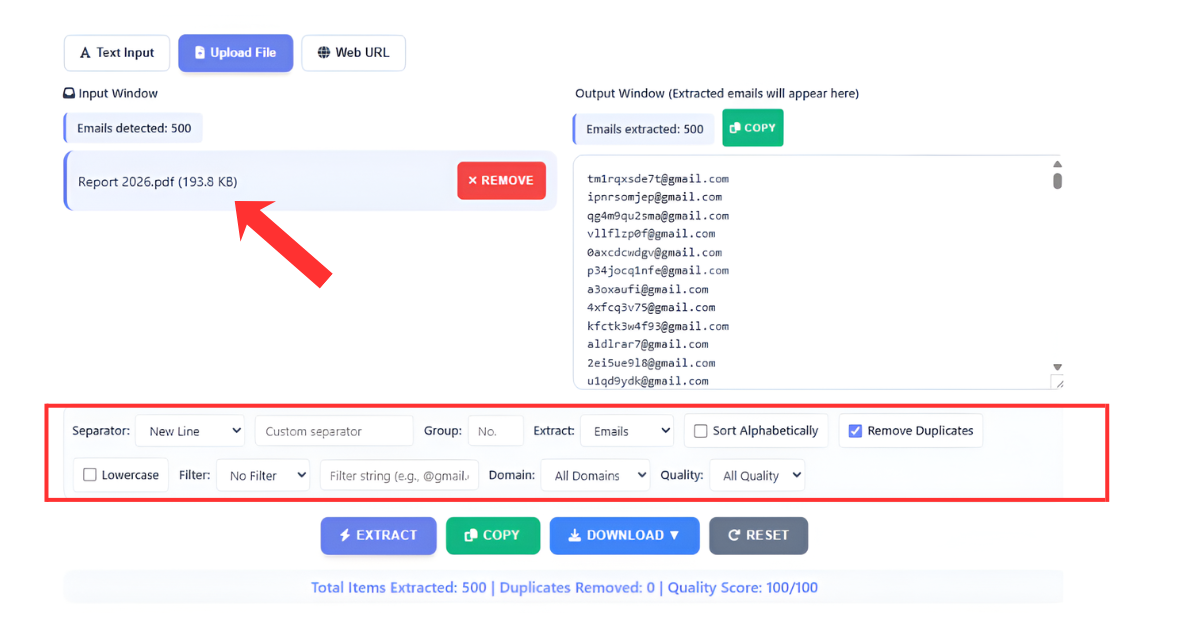
This is where Email Extractor 1.6 shines with customization. Adjust these before hitting extract to get exactly what you need.
- Separator Options — Choose how emails appear in output:
- New line (great for reading or pasting into sheets).
- Comma (perfect for CSV prep or email campaign tools).
- Pipe (|), colon (:), or custom separator.
- Alphabetical Sorting — Toggle this on. Emails sort A-Z automatically—super handy for spotting patterns or cleaning lists.
- Group / Batch Output — Set a group size, like 50 emails per block. Ideal for large lists; prevents one giant wall of text.
- Domain Filter ("Do Not Extract") — Enter strings to exclude. Example: Type your own company domain to skip internal emails, or block free providers like gmail.com if you want business-only.
- Emails Only Toggle — Keep this on (default) to ignore URLs or other noise.
- Quality or Other Filters — Some versions include domain-specific filters (e.g., high-quality only), but focus on basics for PDFs.
These settings apply instantly. Play around—nothing commits until you extract.
Logic here: Spend 20 seconds configuring, save hours of post-cleanup. Smart move. Want to test your domain filters and settings before running a massive PDF? Generate a mock list using our free Random Email Generator to experiment safely.
Step 4: Hit "Extract Emails" and Watch It Work
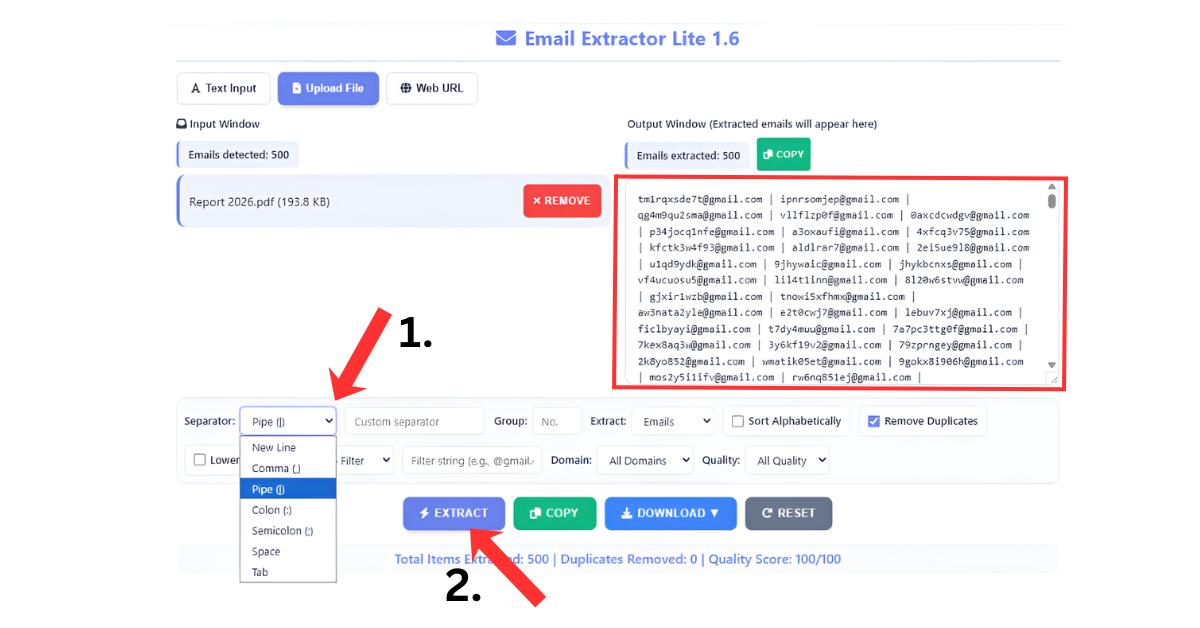
Click the big "Extract Emails" button.
What happens next:
- JavaScript regex scans every line for valid patterns (like [email protected]).
- It finds matches automatically.
- Duplicates vanish instantly—if the same email appears 20 times across pages, you see it once.
- Results appear in the output window within seconds (even for thousands of emails).
You might see a quick progress feel as it processes. For a 200-page PDF with scattered emails, expect near-instant results thanks to browser efficiency.
If zero emails show:
- Double-check: Is the PDF text-based?
- Look for typos in filters.
- Try a smaller test file.
Most times, it's smooth sailing.
Step 5: Review, Copy, or Export Your Clean List
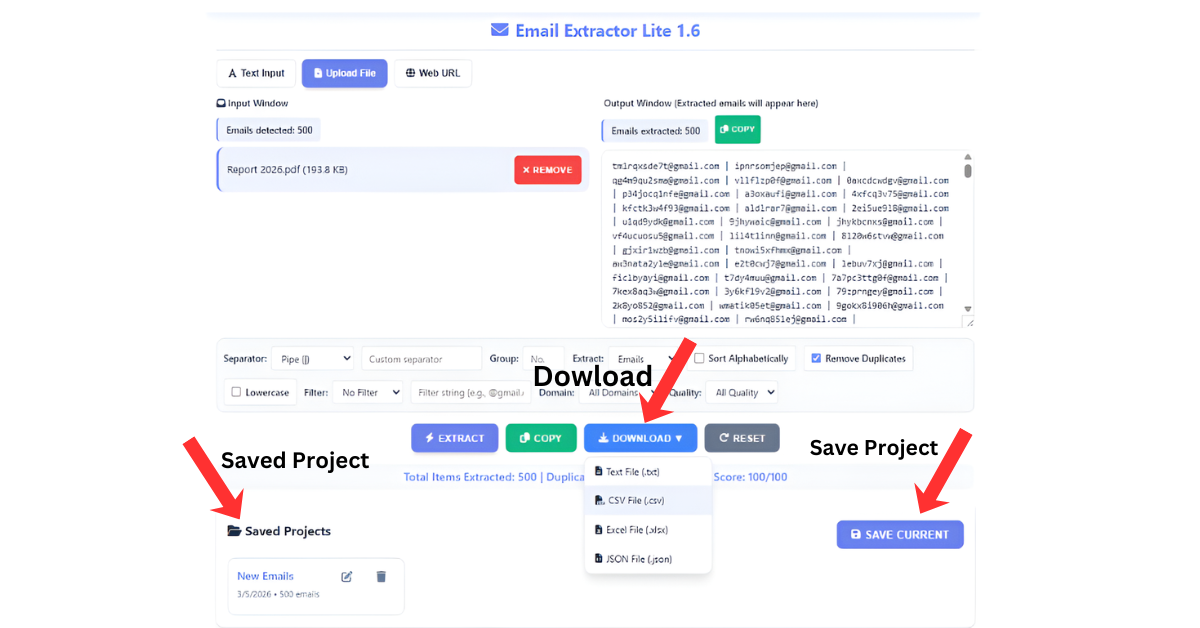
Results ready? Review them quickly.
- See the count of unique emails extracted.
- Spot-check a few for accuracy, or run the complete list through an Free Email Validator to ensure deliverability.
Actions:
- Copy — One-click button copies the entire output to clipboard. Paste into Google Sheets, Excel, or your CRM.
- Download/Export — Choose format: TXT, CSV, JSON, XLSX, or others. CSV with commas works seamlessly for imports like Mailchimp.
- Save Project — Optional: Hit "Save Project," name it, and store locally in browser storage for later tweaks.
Done, From upload to export, you're often under a minute.
Real example: I once processed a conference attendee PDF 500+ pages, hundreds of contacts. Extracted 347 unique emails, sorted, deduped, exported to CSV. Total time? About 45 seconds.
💡 Pro Tip: Once you have your clean list, we highly recommend running it through our free Free Online Email Validator to ensure all addresses are active and safe to send to.
Practical Tips for Better PDF Extraction Results
Getting clean output is not just about clicking the right buttons. A few small habits make a real difference.
- Use a proper PDF reader to copy text. Chrome's built-in PDF viewer sometimes misses formatting or merges lines oddly. Adobe Acrobat Reader handles text selection more reliably.
- Export to plain text when possible. Many PDF readers offer a "Save As" option where you can save the document as a .txt file. Paste that into the extractor for cleaner results.
- Check for multi-column layouts. PDFs with columns sometimes copy text in a mixed-up order. Paste into Notepad first, scan for any obvious junk, then paste into the extractor.
- Use the domain filter for targeted results. If you are extracting from a directory or conference list and only need corporate emails, filter out free domains like gmail.com or yahoo.com to get a tighter, more relevant list.
Who Uses Email Extractor 1.6 for PDFs?
The tool has a genuinely broad user base. Here are the most common real-world use cases:
- Marketers use it to extract contact lists from exported campaign reports, event attendee PDFs, or vendor directories.
- Recruiters pull emails from resume bundles, talent reports, or candidate shortlists stored as PDFs.
- Researchers and academics collect contact data from published papers, conference programs, or institutional directories.
- Business owners use it during data migration, pulling email addresses from legacy documents when switching to a new CRM or platform.
- Developers extract emails from log files, exported HTML pages, or structured data documents during testing or analysis.
A Note on Legal and Ethical Use
Email Extractor 1.6 is a neutral tool. What you do with the results is entirely your responsibility.
Using it to organize contacts you already have permission to reach — your own subscribers, opted-in leads, internal databases, is perfectly legitimate. Using it to build cold lists from third-party documents and blast unsolicited emails is a different story, and in many countries (including the US, UK, Canada, and the EU under GDPR), doing so without consent can carry real legal consequences.
The tool itself is free and honest about what it does. Use it the same way.
Why Email Extractor 1.6 Stands Out for PDF Work
There is no shortage of email extraction tools on the internet. Many are bloated, paywalled, or quietly upload your data to a server somewhere. Email Extractor 1.6 is notable for a few genuine reasons:
It is entirely browser-based, nothing to install, nothing to update, works on any OS. It is privacy-respecting by design, with all processing staying on your device. It is completely free with no hidden tiers or limits tied to volume. And it handles a good variety of real-world file formats without demanding technical knowledge from the user.
For PDF-based email extraction specifically, as long as your PDF contains selectable text, the workflow is fast and the results are clean. You can go from a dense 30-page PDF to a tidy, duplicate-free email list in under two minutes.
That is not bad for a free tool that fits entirely inside your browser tab.
Why This Method Wins in 2026
Email lists decay fast up to 22–30% yearly. Fresh extraction from your own PDFs keeps data current without risky scraping.
Plus, client-side processing means GDPR peace of mind. No data leaves your device.
Email Extractor 1.6 keeps it simple, free, and effective. No fluff, just results.
Got a PDF ready? Head over, upload, and extract. You'll wonder how you ever did it manually.